How to Extend Your Smartphone Battery Life: Practical Tips That Actually Work
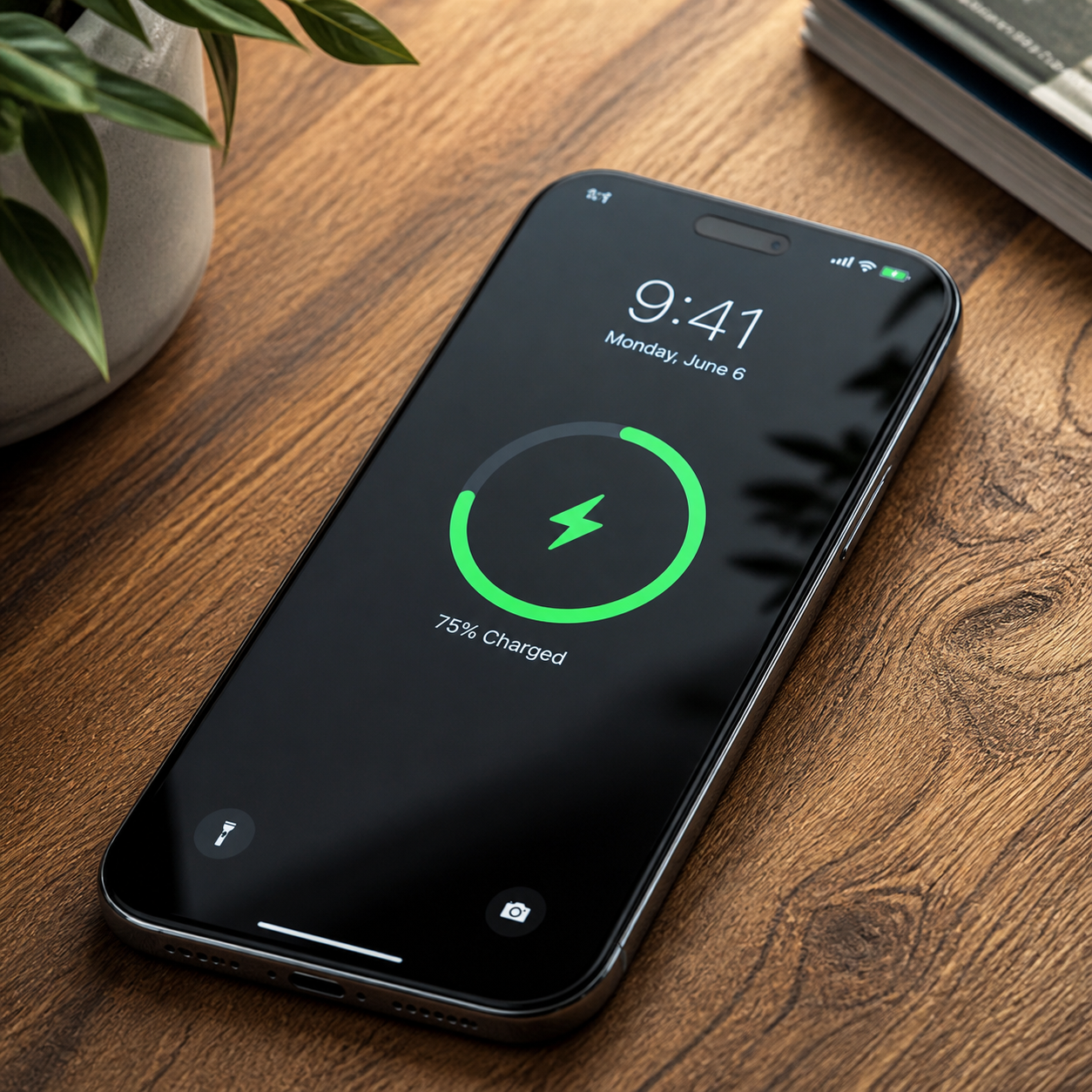
Your phone made it to lunch. Barely. If that sounds familiar, you're not alone — battery drain is one of the most common frustrations among smartphone users, and the causes aren't always obvious. The good news is that most of the drain comes from a handful of settings and habits you can change today, without buying anything new.
This guide covers both quick wins for getting more out of each charge and longer-term habits that protect your battery capacity over months and years. There's a difference between the two, and understanding that distinction will help you prioritize.
Why Your Battery Drains Faster Than It Should
Smartphone batteries drain faster than expected for three main reasons: power-hungry settings running in the background, software behavior you haven't configured, and natural lithium-ion battery degradation over time.
Most users focus on what's on their screen, but the real culprits often operate invisibly. Background app refresh, location services pinging your GPS constantly, and push notifications waking your processor dozens of times per hour — none of this requires you to touch your phone.
Then there's age. Lithium-ion batteries lose capacity through charge cycles. Apple's own data suggests an iPhone battery is designed to retain up to 80% of its original capacity after 500 complete charge cycles under normal conditions. Android devices follow similar patterns. So if your two-year-old phone seems to drain faster than it used to, it probably does — that's not a glitch, it's chemistry.
The fixes fall into two categories: behavioral changes that help today, and charging habits that slow long-term degradation. Both matter.
Tame Your Display: The Biggest Battery Drain on Your Phone
Your screen is almost certainly the single largest consumer of battery power on your device. Reducing screen brightness, shortening screen timeout, and reconsidering Always-On Display can meaningfully extend your daily battery life.
Screen brightness has a near-linear relationship with power consumption. Running your display at full brightness outdoors when you need it is fine — but leaving auto-brightness disabled and cranking it manually is a common mistake. Enable adaptive brightness (iOS) or auto-brightness (Android) and let the sensor do its job.
Always-On Display features, available on devices like the iPhone 15 Pro or Samsung Galaxy S series, are convenient but carry a real cost — estimates from independent testing suggest AOD can account for 5–15% of daily battery drain depending on screen technology and content displayed. If you're consistently running low by evening, turning off AOD is one of the fastest wins available.
High refresh rate screens (90Hz or 120Hz) are another consideration. Smooth scrolling looks great, but dropping from 120Hz to 60Hz in settings can noticeably extend battery life on devices that don't dynamically adjust their refresh rate. Many flagship phones now handle this automatically, but mid-range devices often don't.
Set your screen timeout to 30 seconds or one minute. It's a small thing that adds up across dozens of idle moments throughout the day.
Get Control of Background Activity and App Behavior
Background activity silently drains battery by allowing apps to refresh content, sync data, and check for updates even when you're not using them. Limiting this behavior is one of the most effective ways to reclaim battery life.
On iOS, go to Settings → General → Background App Refresh and disable it entirely, or selectively turn it off for apps that don't need live updates (social media, games, shopping apps are good candidates). On Android, the equivalent lives under Settings → Battery → Battery optimization, where you can restrict which apps run unrestricted in the background.
Push email is a specific offender worth calling out. Having your email client check for new messages every few minutes — or in real time — keeps a radio active and wakes the processor constantly. Switching from push to fetch (checking every 15 or 30 minutes) can noticeably reduce drain without meaningfully impacting your workflow for most people.
Location services deserve their own audit. Open your app permissions and look for apps set to "Always" access your location. Navigation apps need this. Most others don't. Switching them to "While Using" or "Never" cuts GPS polling significantly. On iOS, Settings → Privacy & Security → Location Services gives you a full list. Android users find the same under Settings → Location → App permissions.
Manage Connectivity: 5G, Wi-Fi, Bluetooth, and Location
Wireless radios draw power whether or not you're actively using them, and 5G in particular is a meaningful drain compared to 4G LTE. Knowing when to manage your connectivity settings can buy you extra hours.
5G does drain battery faster than LTE — this is well-documented and acknowledged by both Apple and Google. The gap narrows on newer chips, but on most current devices, switching your cellular network setting to "LTE Only" when you're not doing anything that benefits from 5G speeds (streaming 4K, large downloads) is a practical trade-off. You lose peak download speeds; you gain battery life. Whether that trade is worth it depends entirely on how you use your phone.
Wi-Fi, counterintuitively, is more power-efficient than cellular data for most tasks. If you're at home or in a trusted location, staying on Wi-Fi rather than cellular saves battery. Bluetooth has a minimal impact on modern devices in standby, so unless you're actively trying to squeeze out every percentage point, leaving it on for your headphones or smartwatch is generally fine.
One often-overlooked setting: Wi-Fi scanning and Bluetooth scanning, which allow apps to use nearby networks and devices to improve location accuracy even when Wi-Fi and Bluetooth are off. On Android, this is found under Location → Location Services. Disabling it removes a background drain most users don't know exists.
Use Built-In Battery Modes Effectively
Low Power Mode on iOS and Battery Saver on Android are the fastest way to extend your remaining charge when you're running low — but they work best when you understand what they actually do.
Enabling Low Power Mode (iOS) reduces or disables background app refresh, automatic downloads, some visual effects, and email fetch. It doesn't cripple your phone — calls, messaging, and browsing still work normally. Apple says it can add up to three hours of additional use depending on your activity. The trade-off is that some apps update less frequently and iCloud sync may pause temporarily.
Android's Battery Saver mode does similar things but varies by manufacturer. Samsung's version, for instance, includes options to limit CPU speed and screen refresh rate in addition to restricting background activity. Google's Pixel implementation is more conservative by default.
A practical approach: don't wait until you're at 5% to enable these modes. Turning on Battery Saver at 30–40% when you know you won't have access to a charger for several hours is a smarter move than scrambling at the end of the day. Some users set their phones to enable these modes automatically at 20% — both iOS and Android support this.
Charge Smarter to Protect Long-Term Battery Health
How you charge your phone matters as much as how often you charge it. The 20–80% rule — keeping your battery between 20% and 80% rather than running it to zero or charging to 100% — is the most widely cited guideline for preserving lithium-ion longevity, and it's grounded in real electrochemistry.
Lithium-ion cells experience the most stress at the extremes of their charge range. Regularly charging to 100% and leaving the phone plugged in overnight accelerates capacity loss over time. Both Apple and Google have responded to this with Optimized Battery Charging (iOS) and Adaptive Charging (Android), which learn your routine and delay the final charge to 100% until just before you typically wake up. These features are worth enabling.
Heat is the other major enemy of battery health. Charging while gaming or using navigation in a hot car significantly raises battery temperature, and sustained heat above roughly 35°C (95°F) accelerates degradation faster than almost any other factor. If your phone gets hot while charging, remove it from its case and move it somewhere cooler.
Fast charging is convenient but generates more heat than standard charging. For overnight charging when you have time, using a standard charger is easier on the battery than a 65W or 100W brick. Saving fast charging for when you actually need speed is a reasonable habit.
When to Seek a Battery Replacement
If your battery health has dropped below 80% of its original capacity, a replacement will do more for your daily battery life than any combination of software tweaks.
On iPhone, you can check this directly: Settings → Battery → Battery Health & Charging. A reading below 80% means your battery is significantly degraded, and Apple considers this the threshold for recommending replacement. Android doesn't have a universal equivalent, but manufacturers like Samsung have added battery health diagnostics to their device care apps, and the Android platform increasingly surfaces this information in system settings on newer versions.
Signs that degradation has become a real problem include: the phone shutting down unexpectedly at 20–30% charge, noticeably worse performance (iOS throttles CPU speed to protect a degraded battery), and charge levels that swing dramatically during use.
Battery replacements through official service channels — Apple, Samsung, Google, or authorized repair shops — typically cost $50–$100 and can restore a device to near-original battery performance. For a phone that's otherwise working well, that's often a better investment than buying a new device.
Frequently Asked Questions
Does dark mode actually save battery life?
Dark mode saves battery life on phones with OLED or AMOLED screens, because black pixels on these displays are literally turned off and consume no power. The savings are real but modest in typical use — most useful when your screen is at high brightness for extended periods. On LCD screens, dark mode has no meaningful effect on battery consumption.
Does closing apps in the background help battery life?
Generally, no — and it can actually hurt. iOS and Android both suspend background apps so they consume minimal power. Force-closing and relaunching apps requires more energy than leaving them suspended. The exception is apps that are actively running background processes (navigation, music streaming), which you can see in your battery usage breakdown.
How often should I charge my phone?
Charge when it's convenient, but try to avoid letting it drop below 20% regularly or sitting at 100% for hours. Frequent top-ups throughout the day (keeping it between 30–80%) are healthier for the battery than full discharge-and-recharge cycles.
Does 5G drain battery faster than 4G LTE?
Yes, in most real-world conditions. 5G radios draw more power, particularly when searching for or maintaining a 5G signal in areas with inconsistent coverage. The gap is smaller on newer chipsets, but switching to LTE-only mode remains a reliable way to extend battery life when 5G speeds aren't needed.
How do I check my smartphone's battery health?
On iPhone: Settings → Battery → Battery Health & Charging. On Android, the path varies by manufacturer — Samsung users can find it in Settings → Device Care → Battery, while Pixel users can check via Settings → Battery. Third-party diagnostic apps exist but vary in accuracy; the built-in tools are the most reliable starting point.